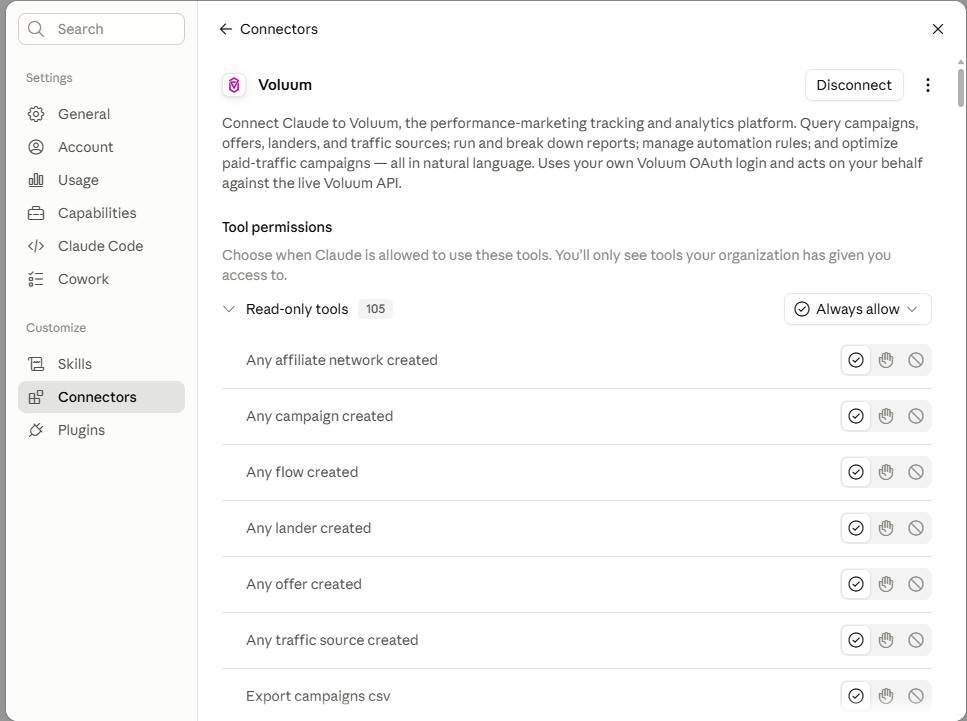
Connect Claude to Voluum with MCP

This guide shows how to connect Claude to Voluum MCP.
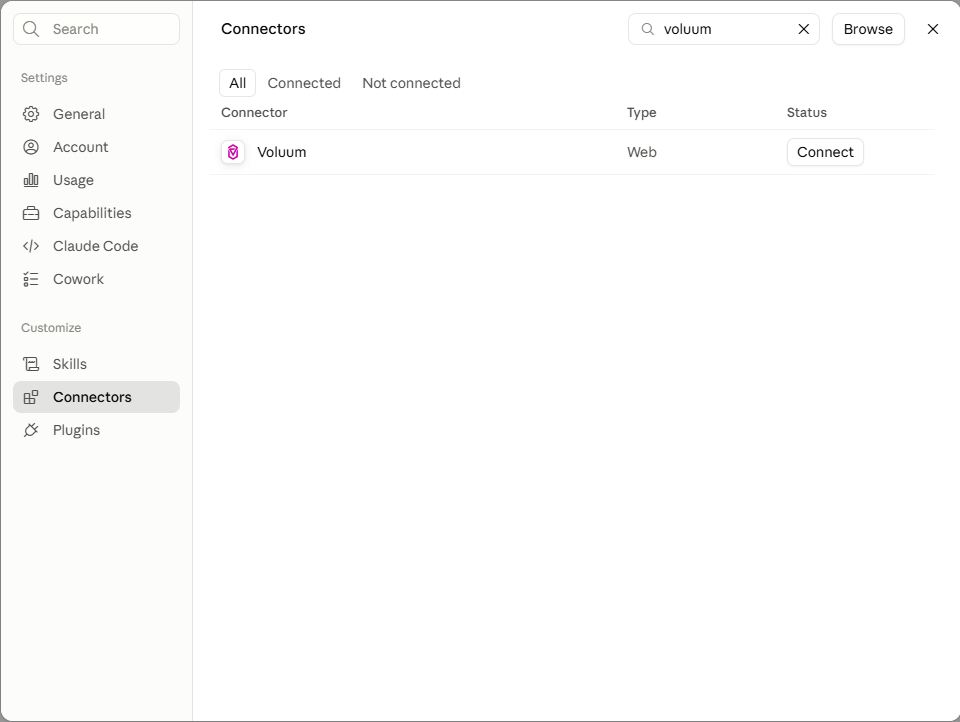
- In Claude (Pro/Max), go to Settings -> Connectors
- Find Voluum (or go to https://claude.ai/directory/connectors/voluum directly). Click Connect.
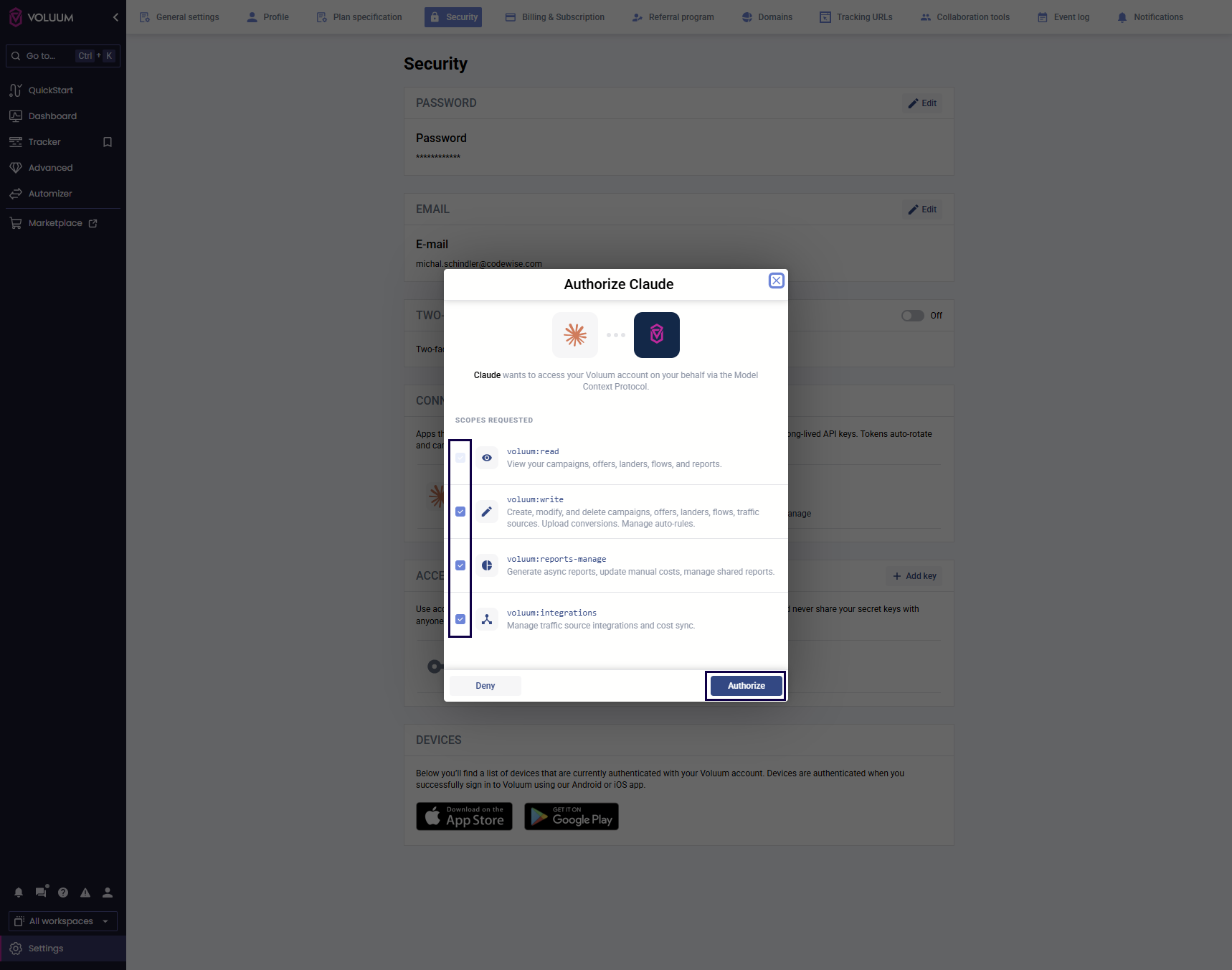
- Log into Voluum.
- Review integration setting and click Authorize.
- The integration is complete. You can manage the details of your integration in Claude.